
Knowledgebase
Search Articles
Categories
Cloud/VPS- Email-Email Accounts-Migrations and Transfers-Email Migrations
- Email-Email Accounts
- SSL Certificates
- Email-Email Accounts-Spam & Junk Email
- Programming Languages-PHP
- Programming Languages-ASP
- Web Hosting-Site Management
- Email-POP3/IMAP
- Web Hosting-Website Extras
- Web Hosting-Website Problems
- SSH
- Email-Spam & Junk Email
- Migrations and Transfers-Email Migrations
- Email-Webmail
- FTP-Migrations and Transfers-Email Migrations-Web Hosting-Site Management
- FTP
- Domain Names-Domain Transfers
- Web Hosting-Site Management-Website Extras-Website Problems
- Web Hosting-Site Management-Website Extras
- Domain Names-Domains-Web Hosting-Site Management-Website Extras
- Domain Names-Domains-Web Hosting-Site Management
- Domain Names-Domains-Web Hosting-Site Management-Website Extras-WordPress
- Domain Names-Domains
- Databases-MySQL
- Databases-MySQL-Domain Names-Domains-Web Hosting-Site Management-Website Extras
- CDN
- Databases-MS-SQL
- Programming Languages-PHP-Web Hosting-Site Management
- Databases-MySQL-Email-Email Accounts-FTP-Web Hosting-Site Management
- Domain Names-Domain Transfers-Domains
- Domain Names-Domain Registrations & Renewals-Domains
- WordPress
- Cloud Servers
- Managed VPS
- Virtual Private Server
- Sales Support
Images
Add an image section to your page
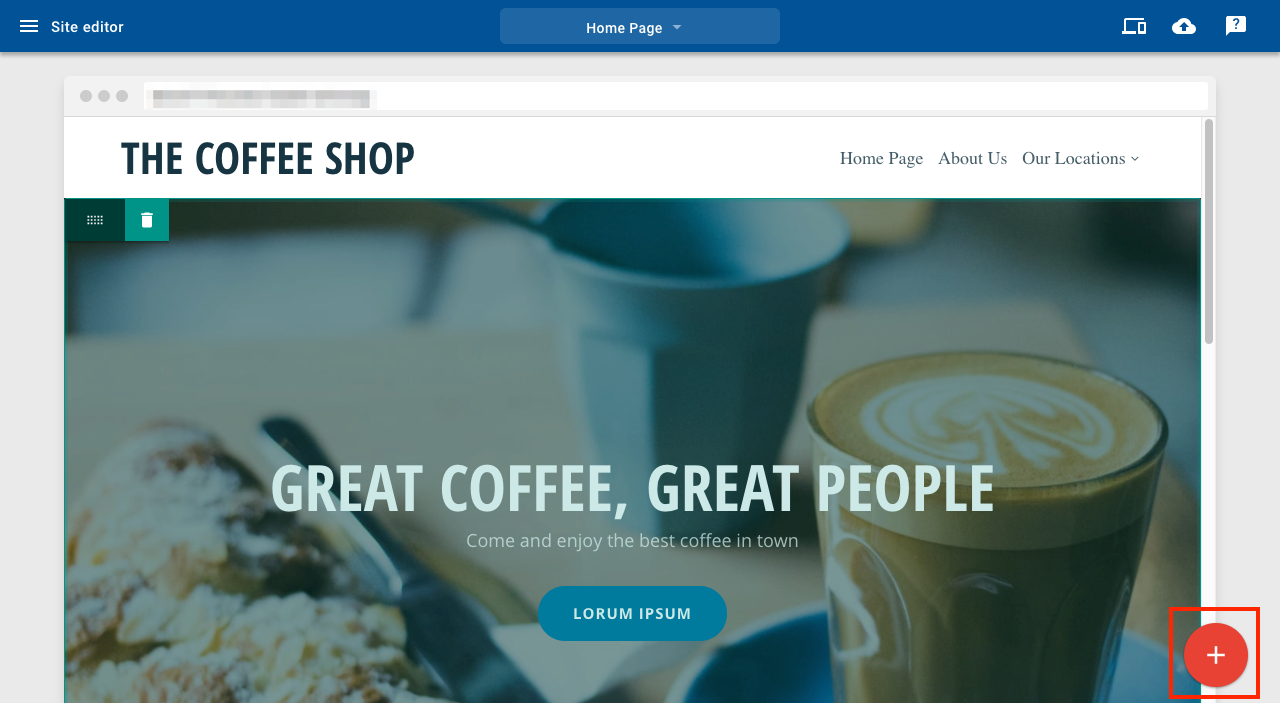
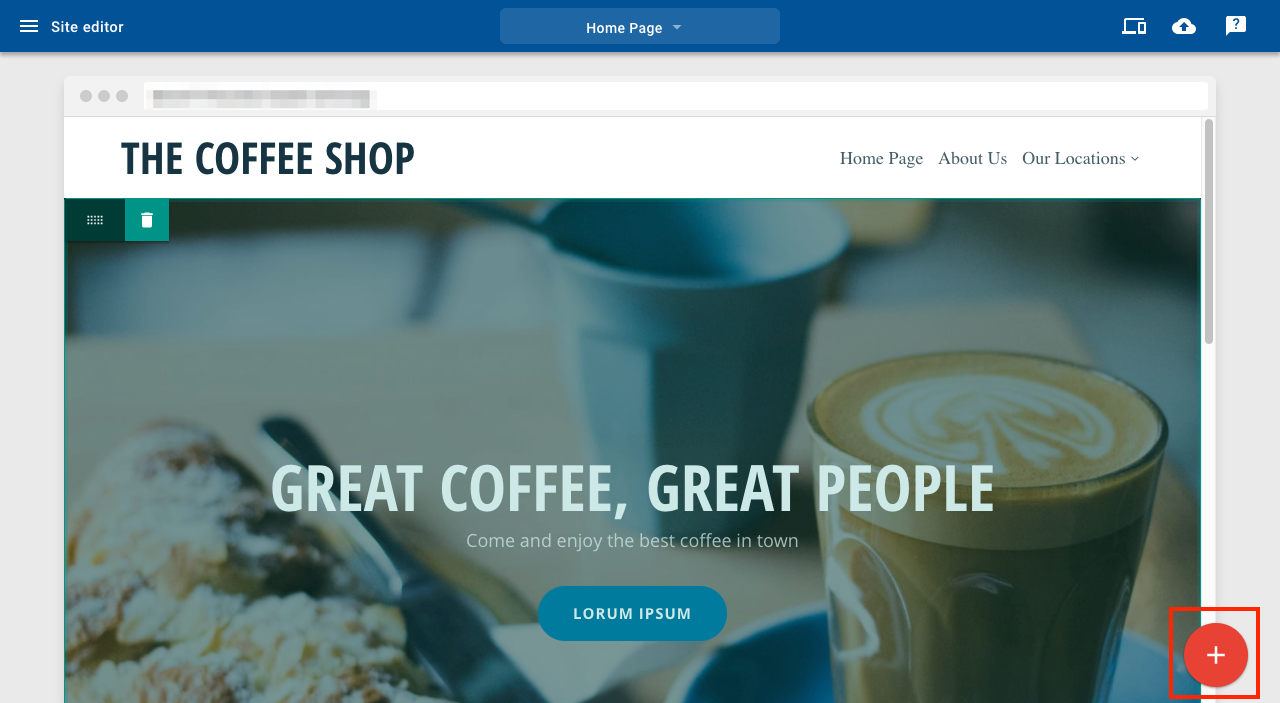
1. Click the + button
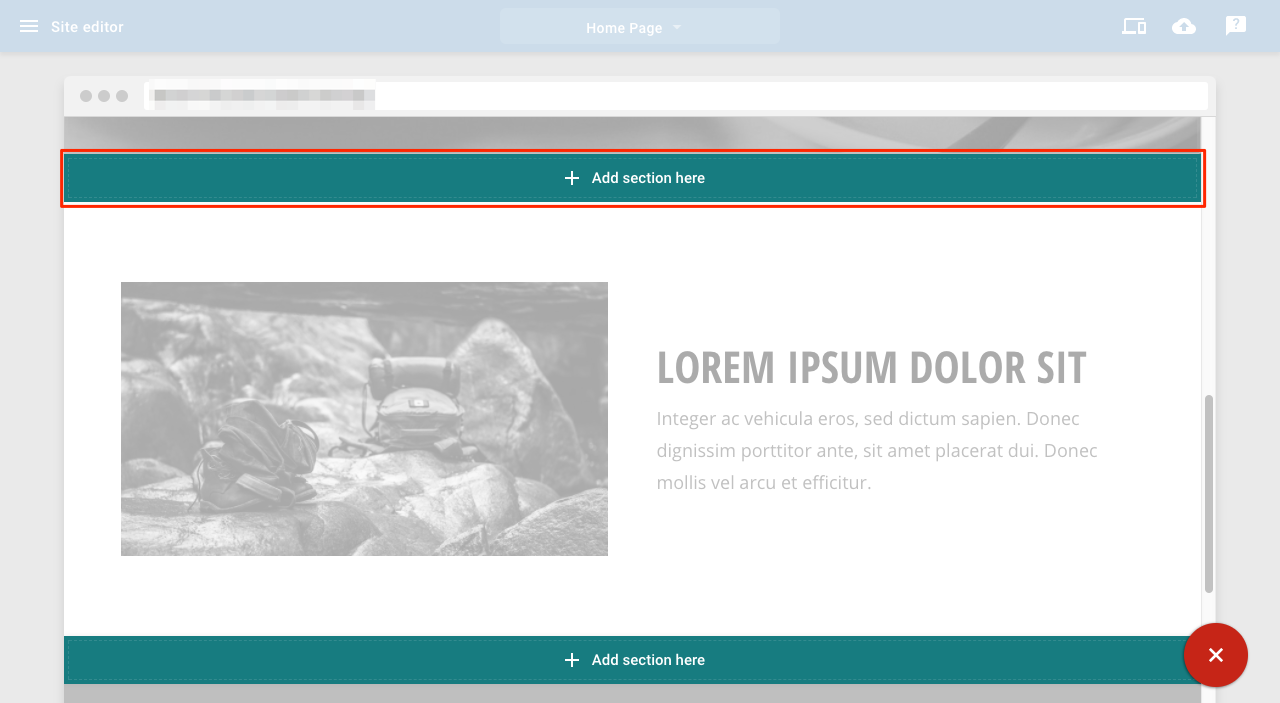
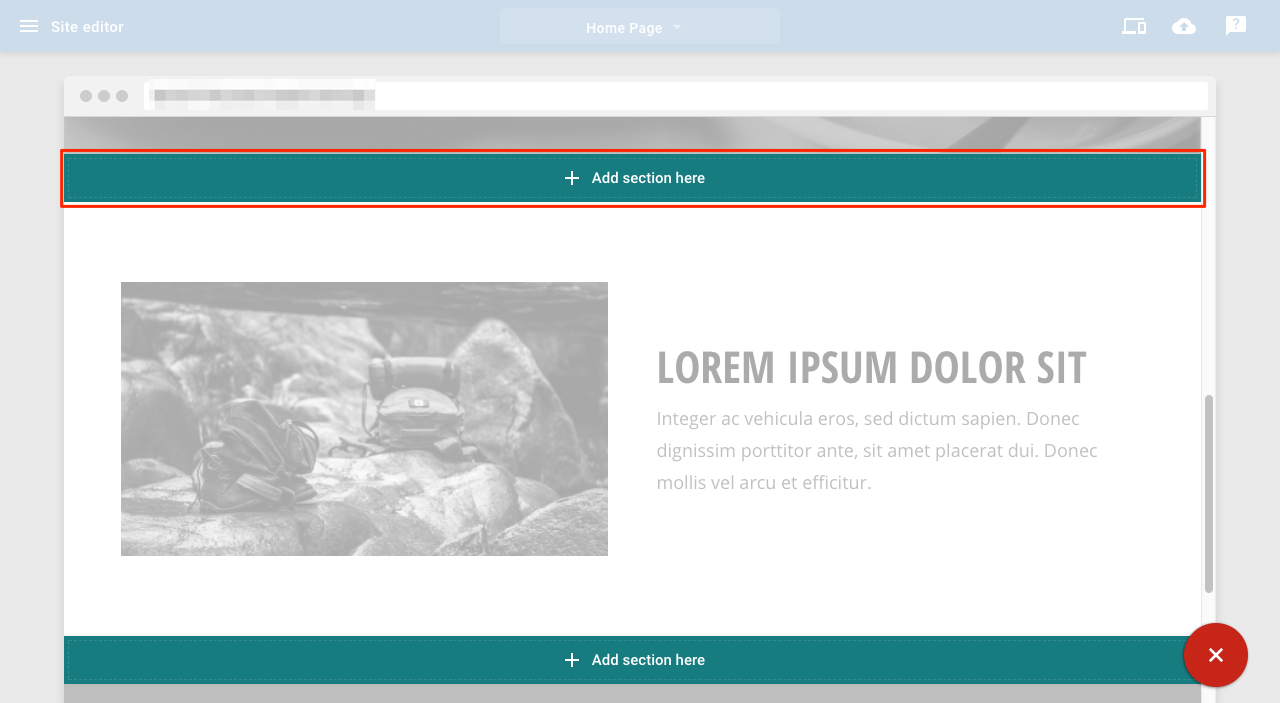
2. Click Add section here in the position you want
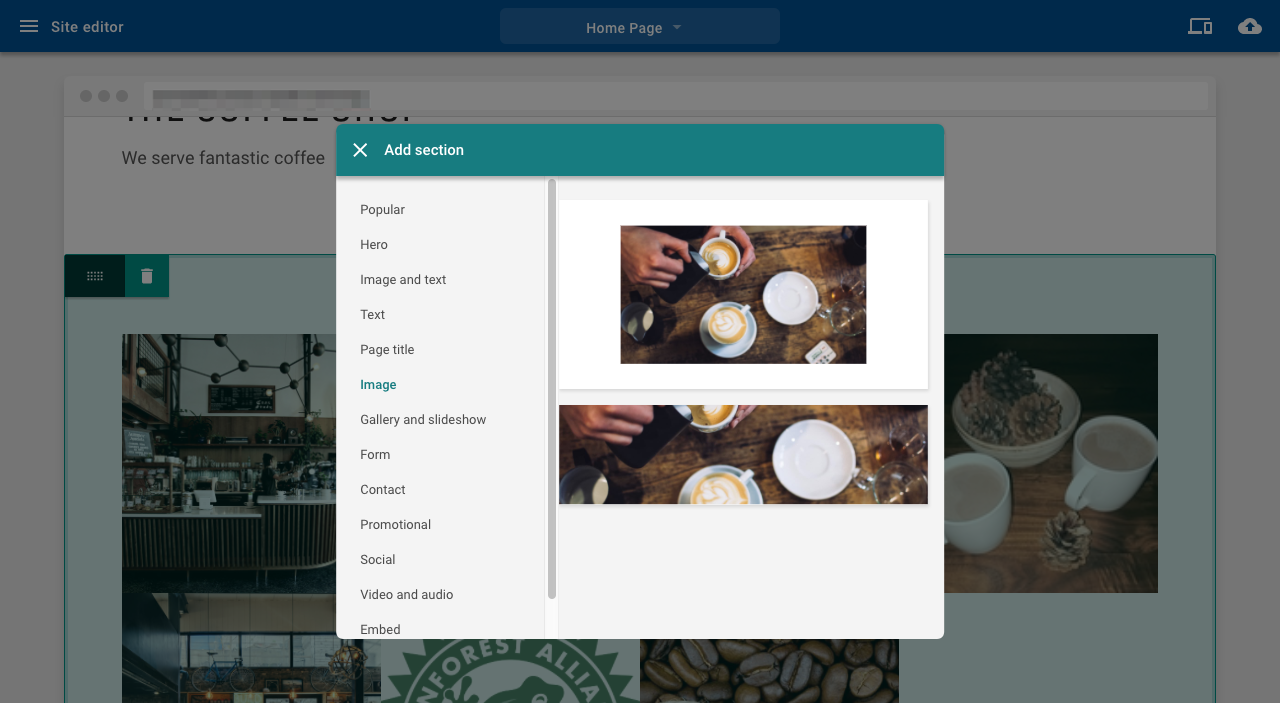
3. Select the image section you want
4. Click on the section you have just added to open the settings panel
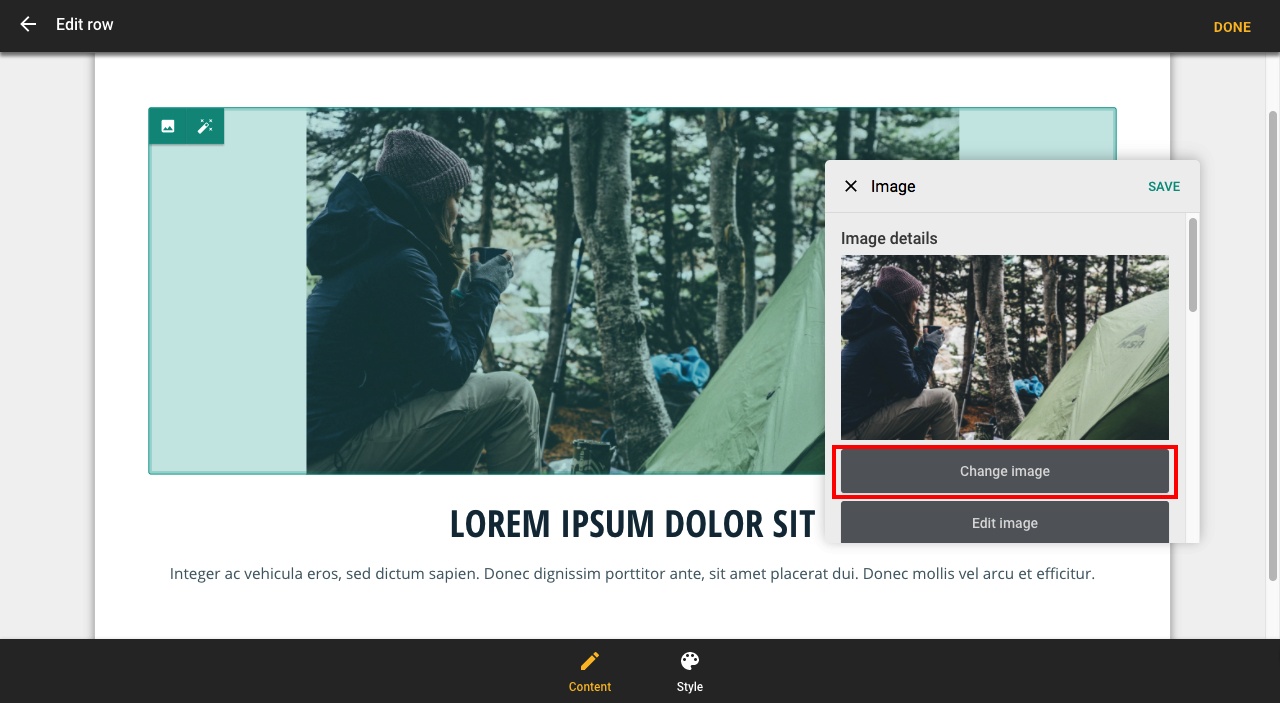
5. Click on the image to open the image settings panel
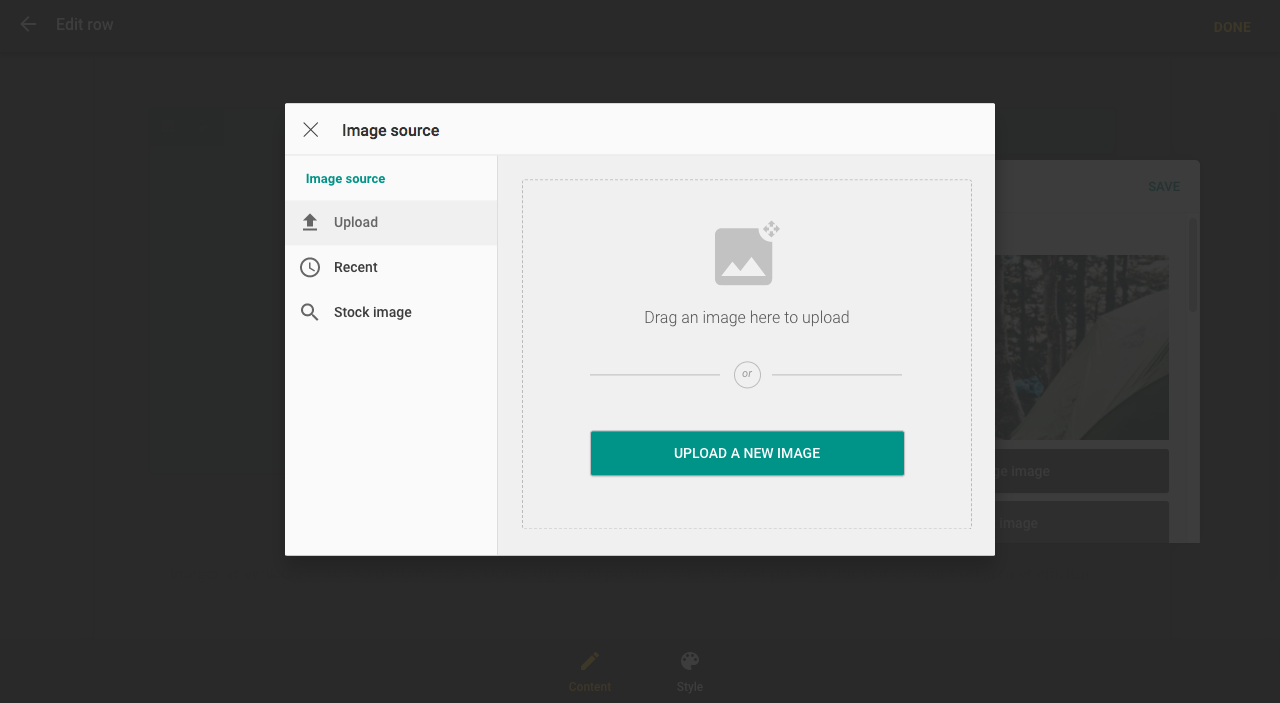
6. Click on Change image
7. Select an image to upload
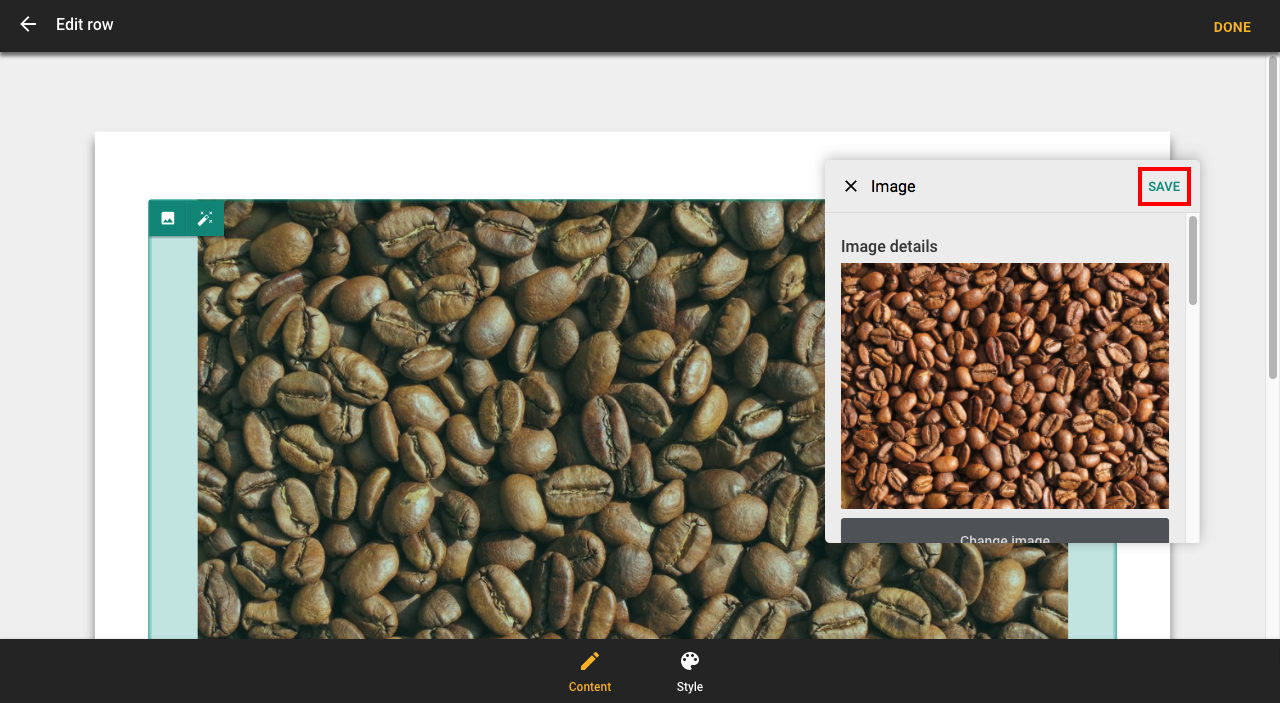
8. Click Save to make the changes
Add a gallery
1. Click the + button
2. Click Add section here in the position you want
3. Select the gallery section you want
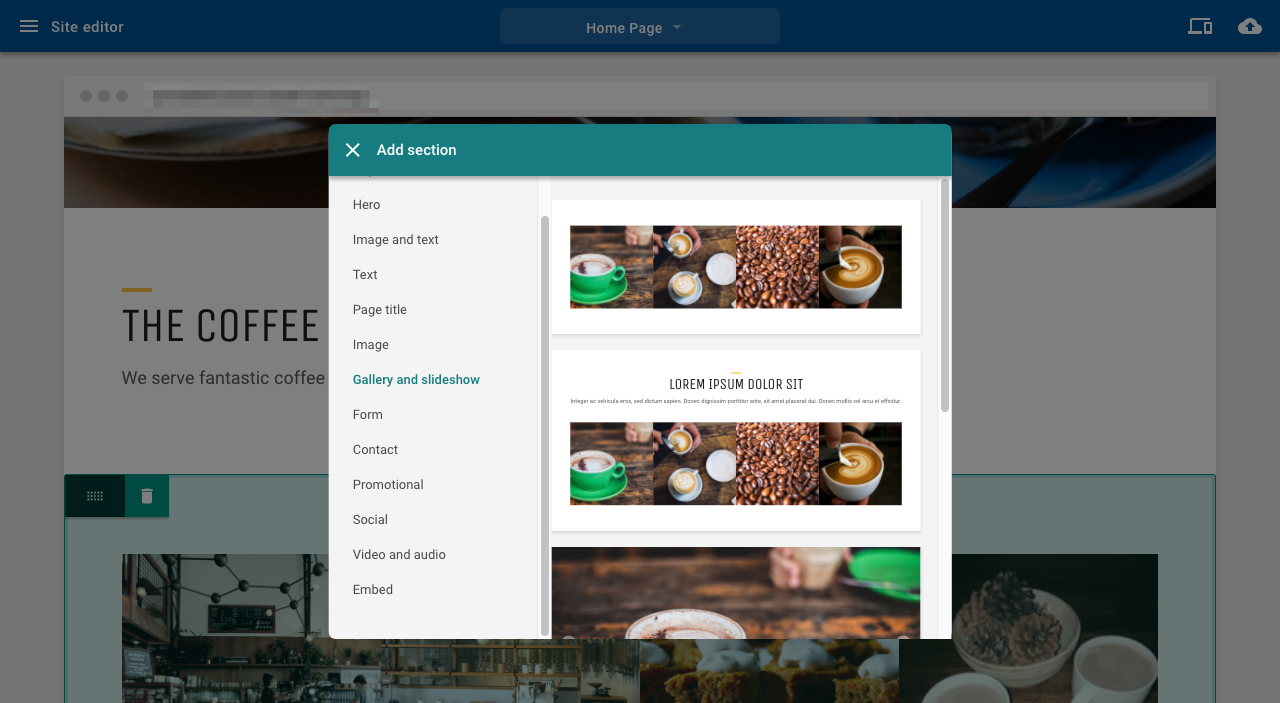
4. Click on the section you have just added to open the settings panel
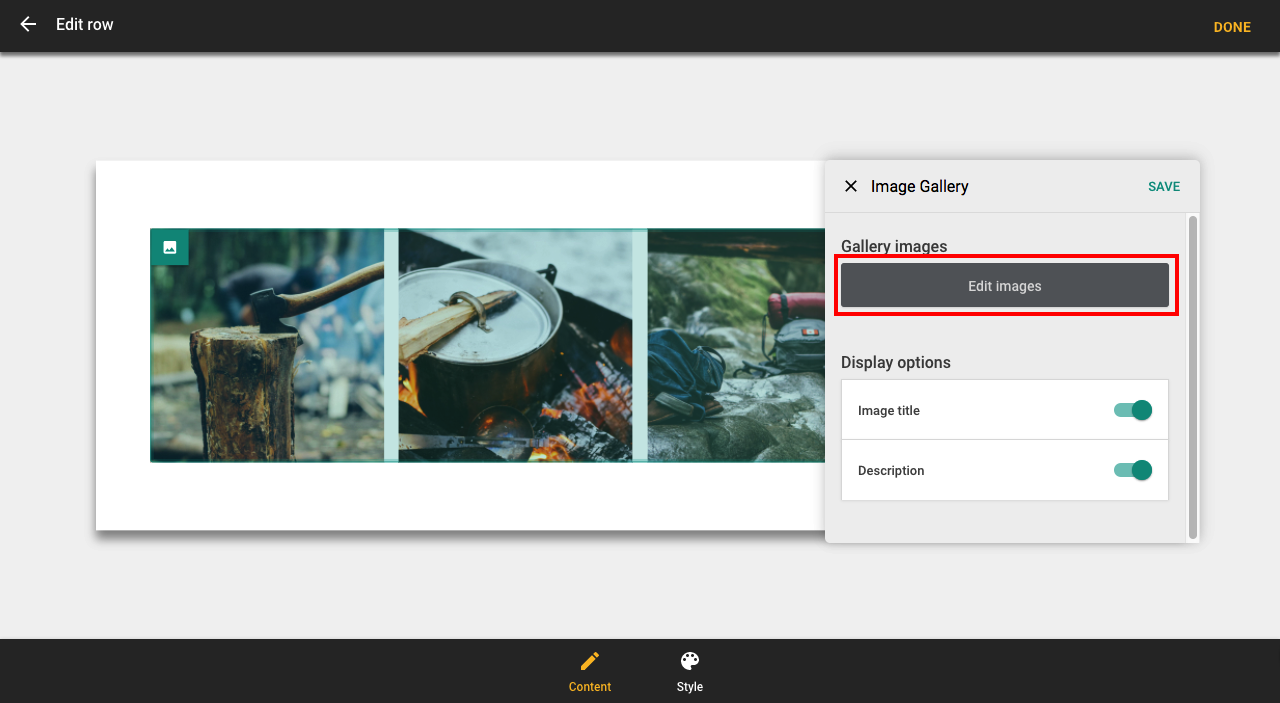
5. Click on the gallery to open the gallery settings panel
6. Click on Edit images
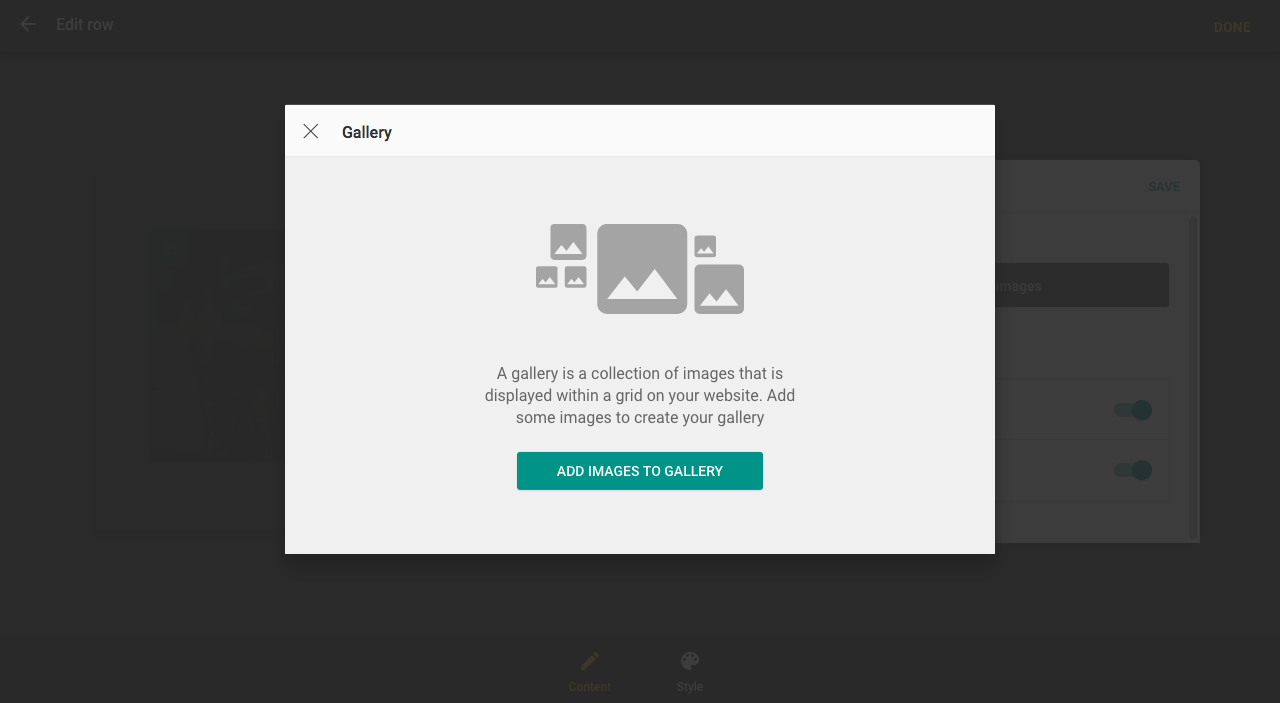
7. Click Add images to gallery
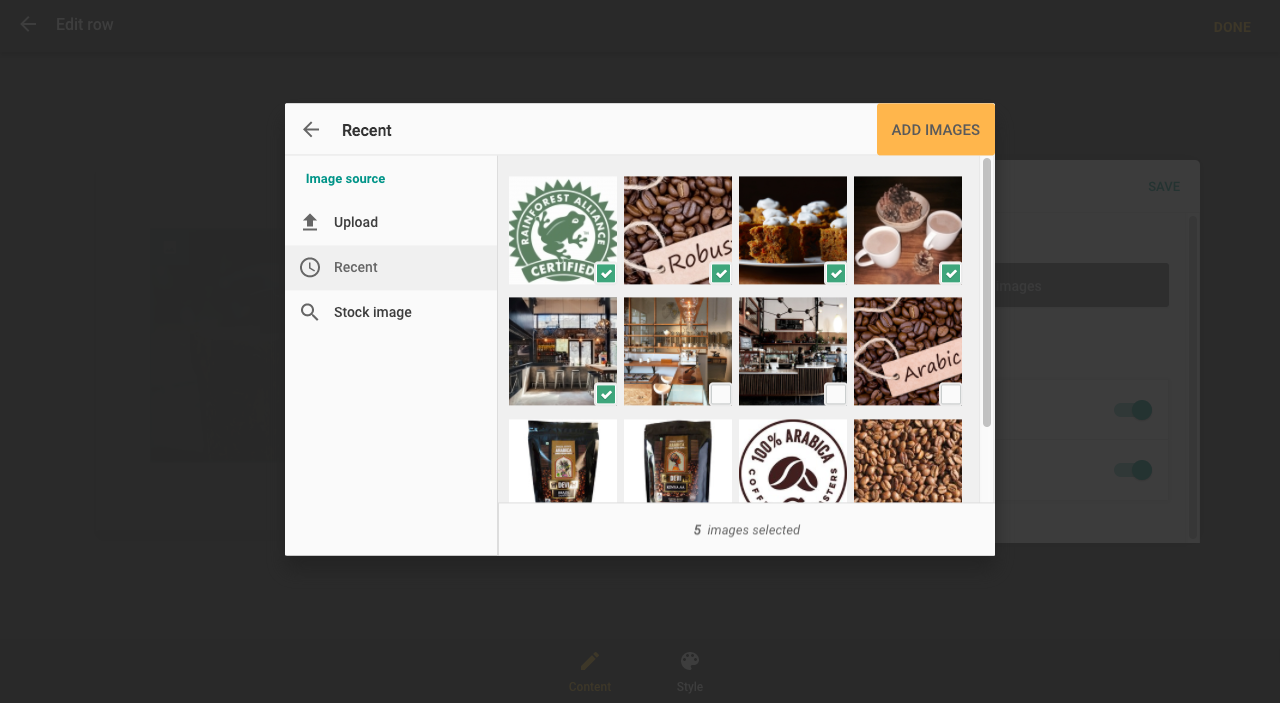
8. Upload new images or use the Recent tab to select the images you want to add and click Add images
9. Images in the gallery can be re-ordered by dragging and dropping and then clicking Done
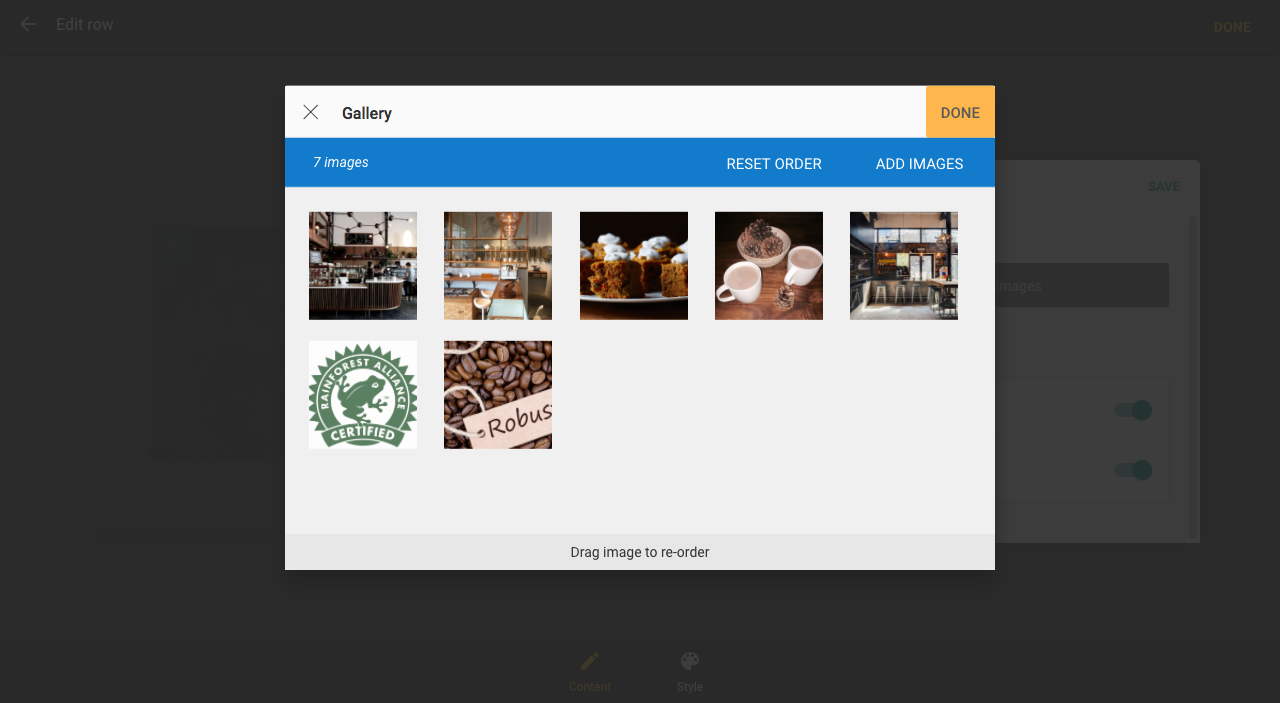
Add a Slideshow
1. Click the + button
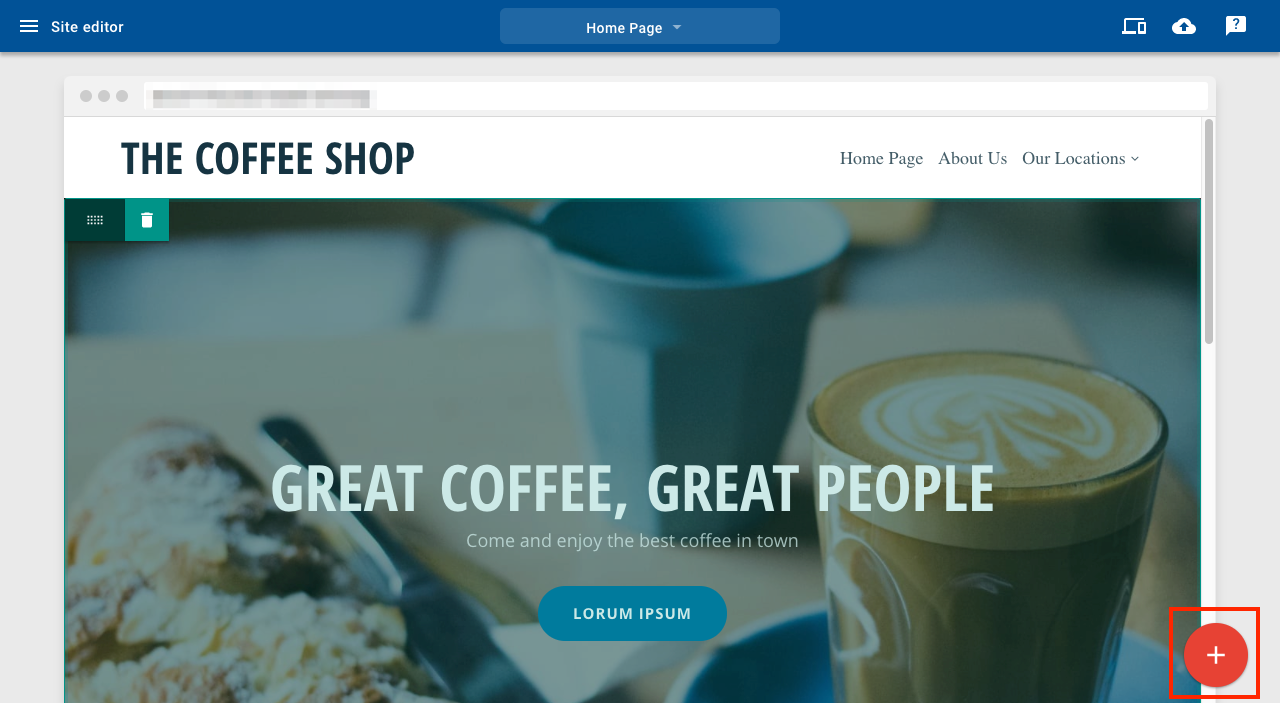
2. Click Add section here in the position you want
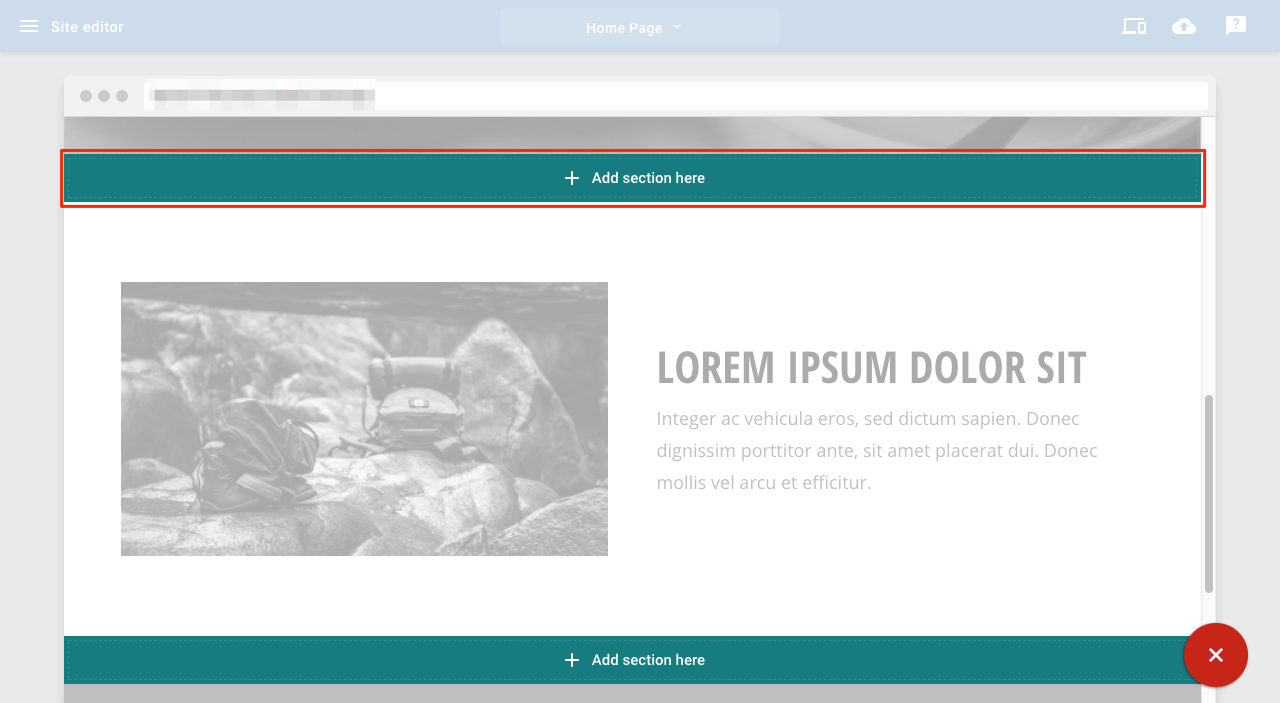
3. Select the slideshow section you want
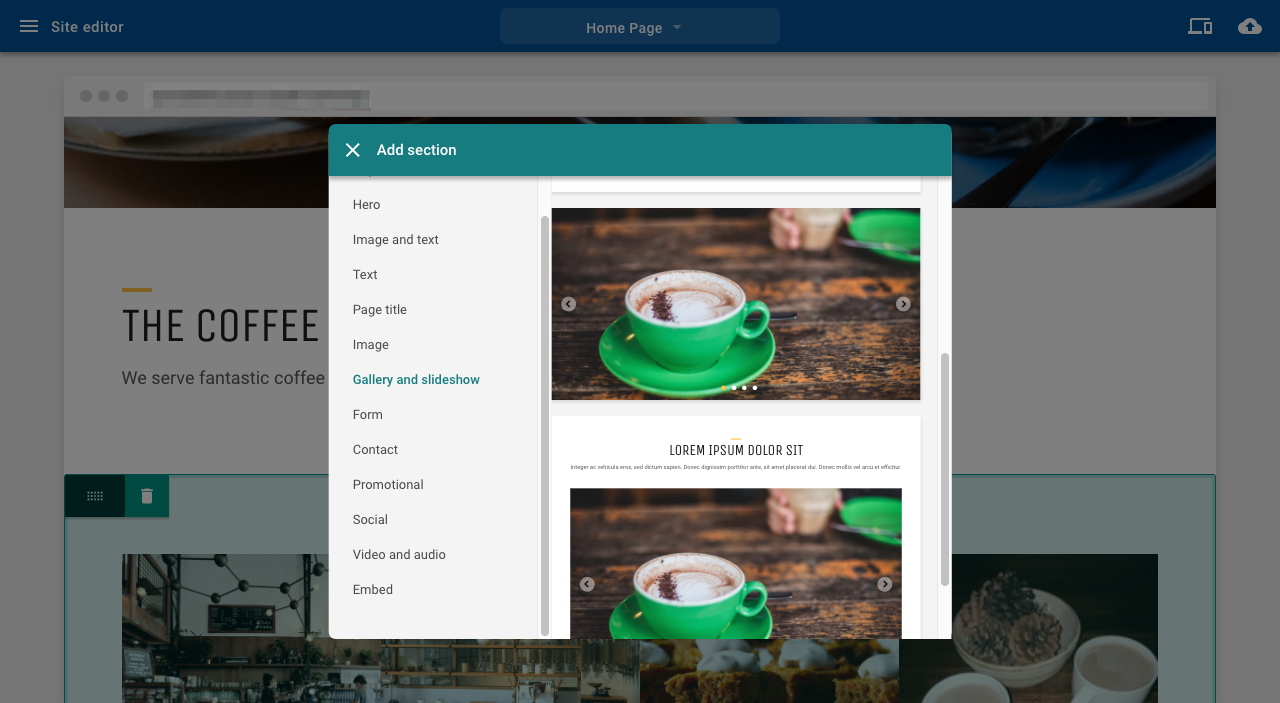
4. Click on the section you have just added to open the settings panel
5. Click on the image icon in the top left corner to open the slideshow settings panel
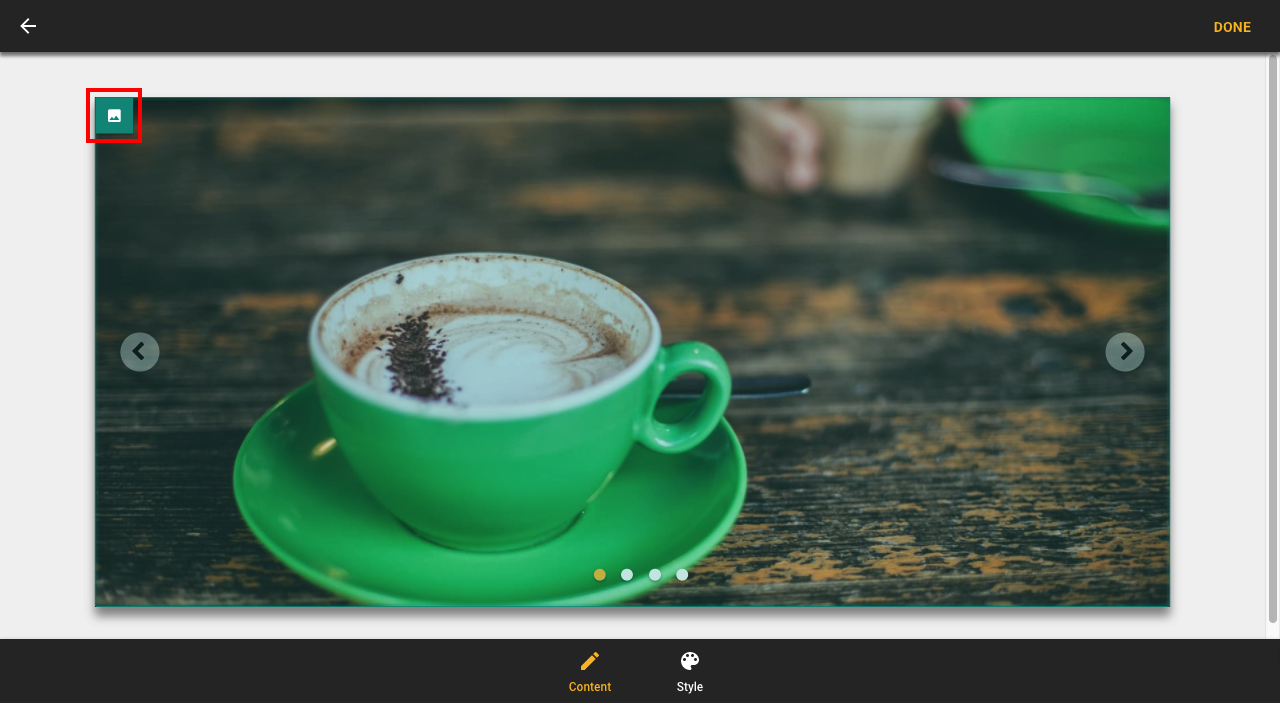
6. From the slideshow settings panel, you can change transition, image and display options. To add images, click the Edit images button

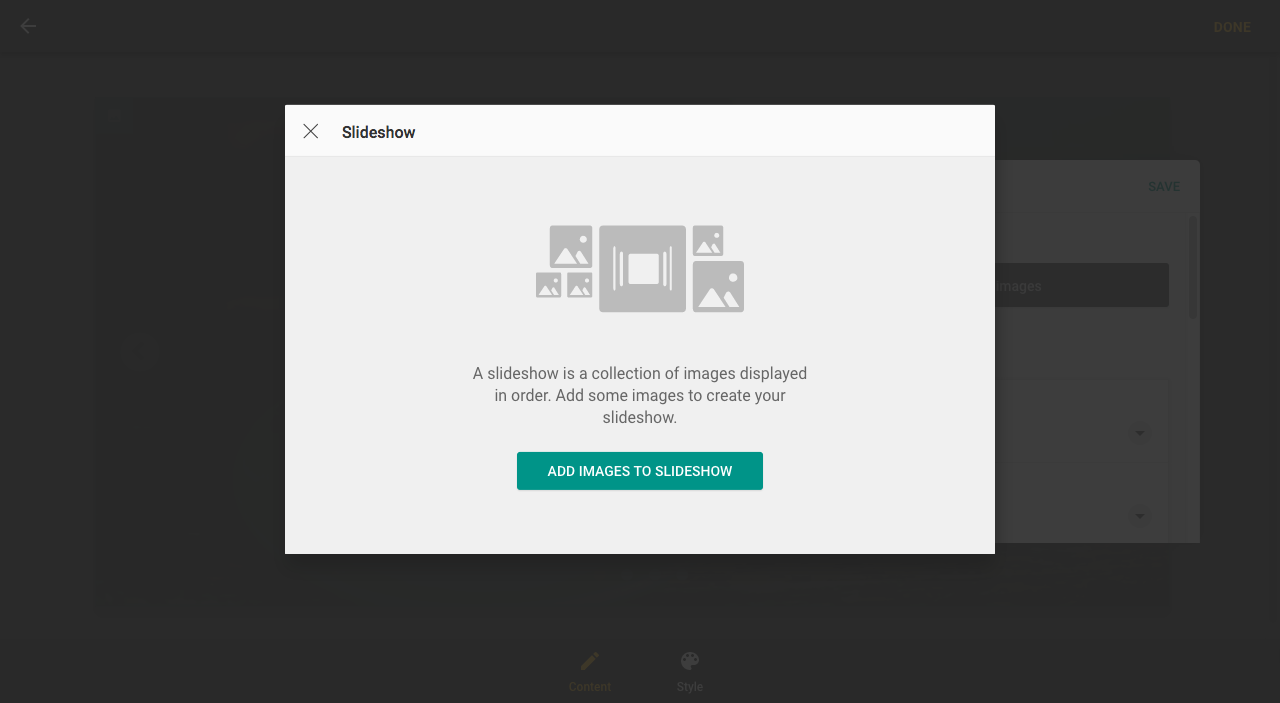
7. Click the Add images to slideshow button
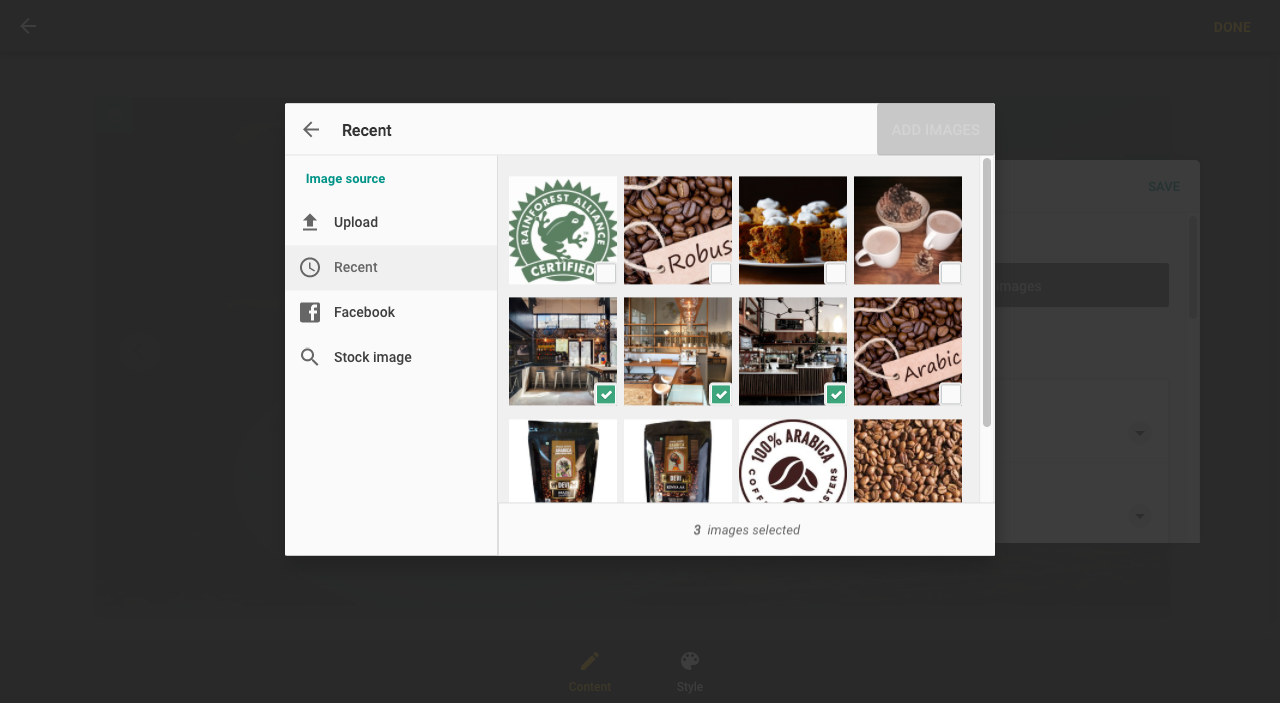
8. Upload new images or use the Recent tab to select the images you want to add and click Add images
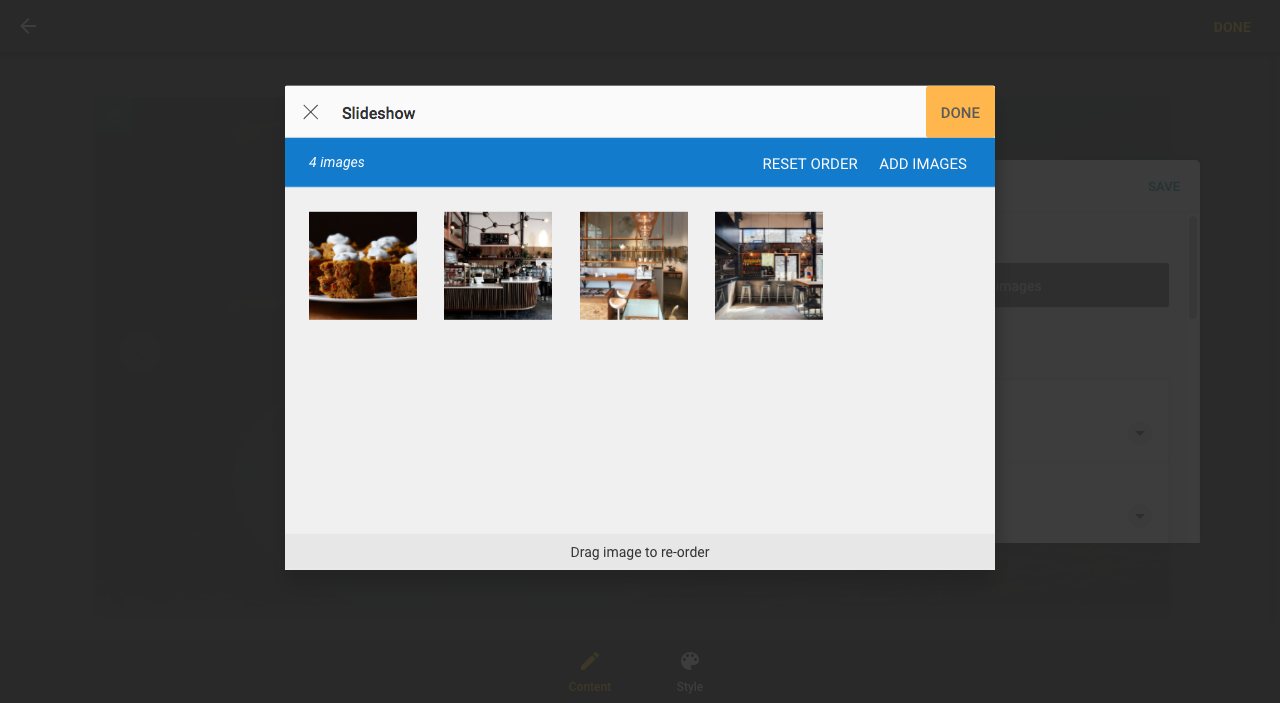
9. Images in the slideshow can be reordered by dragging and dropping and then clicking Done
Related Articles
Website Builder FAQsWebsite Builder Quick Start
How To Add Essential Site Information
Change The Look Of Your Site
Add Forms, Maps And Other Content
Can’t Find what you need?
No worries, Our experts are here to help.