
Back to Using Website Builder
Change The Look Of Your Site
There are three ways to change the look of your site:
Changing the site design
Changing the section style
Changing the section layout
Changing the site design
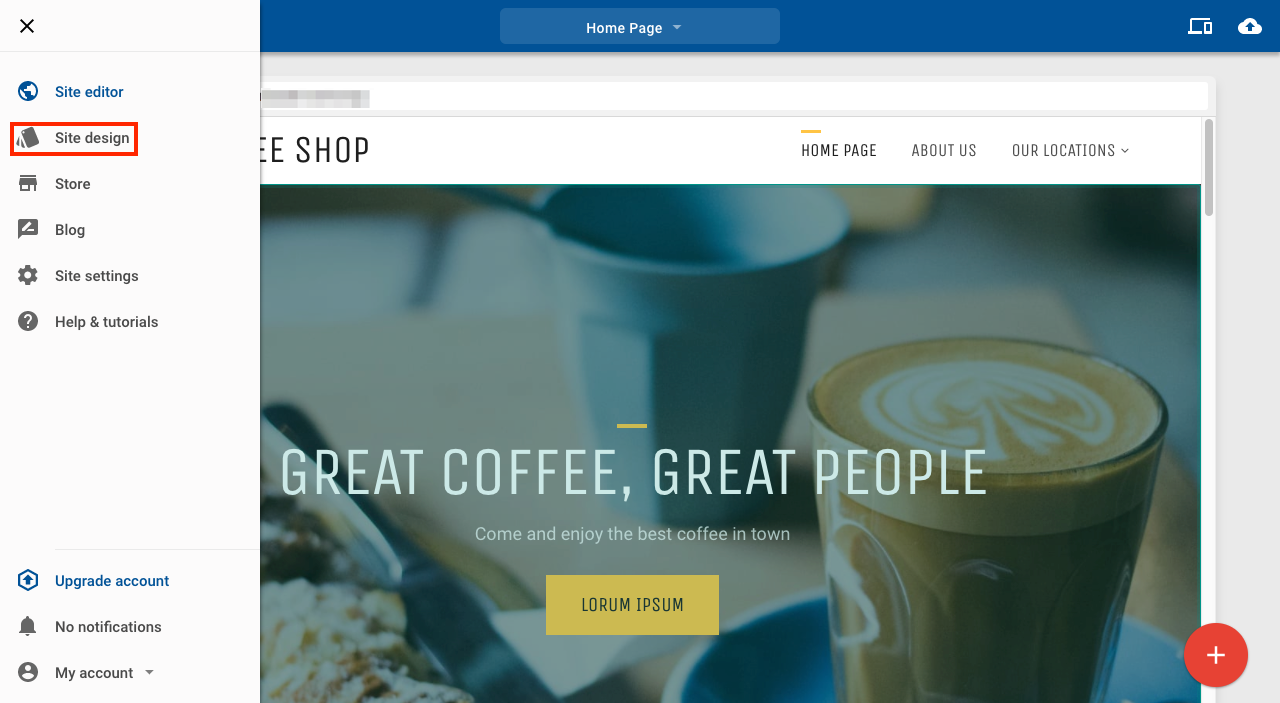
1. Click Site design
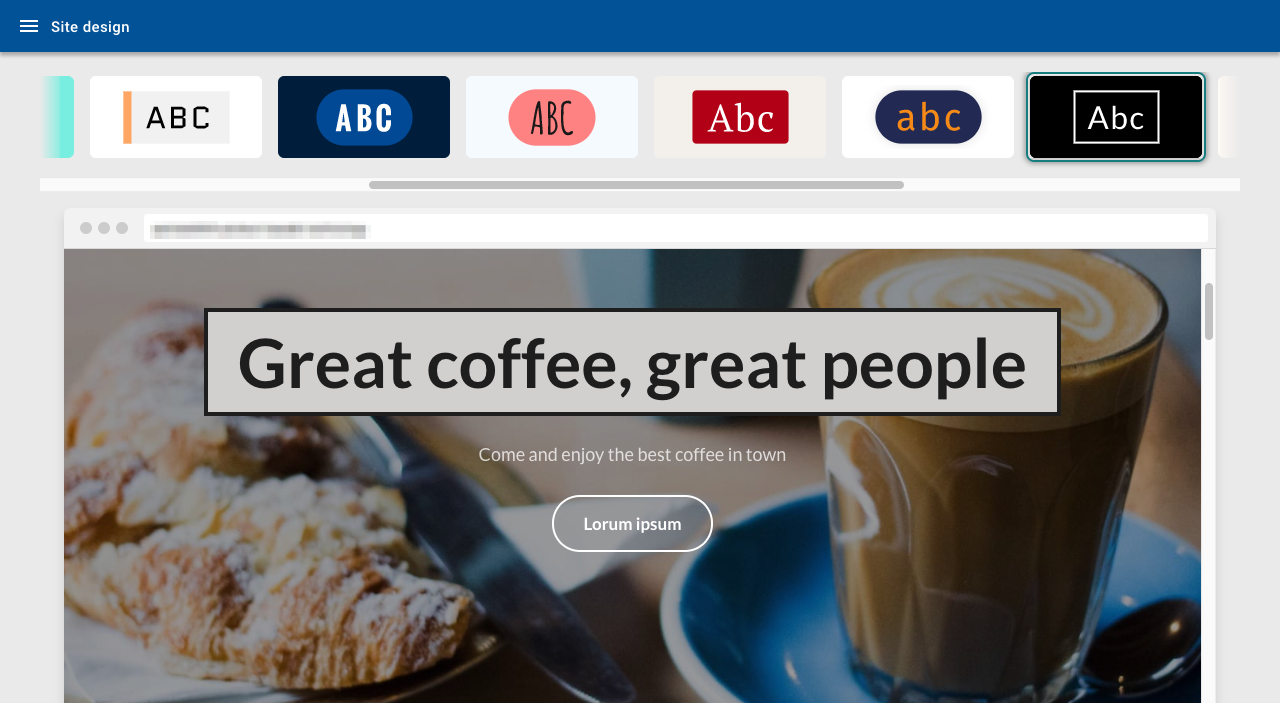
2. Choose from the options at the top of the page to change your site design. Return to the editor to continue editing your site
Changing section styles
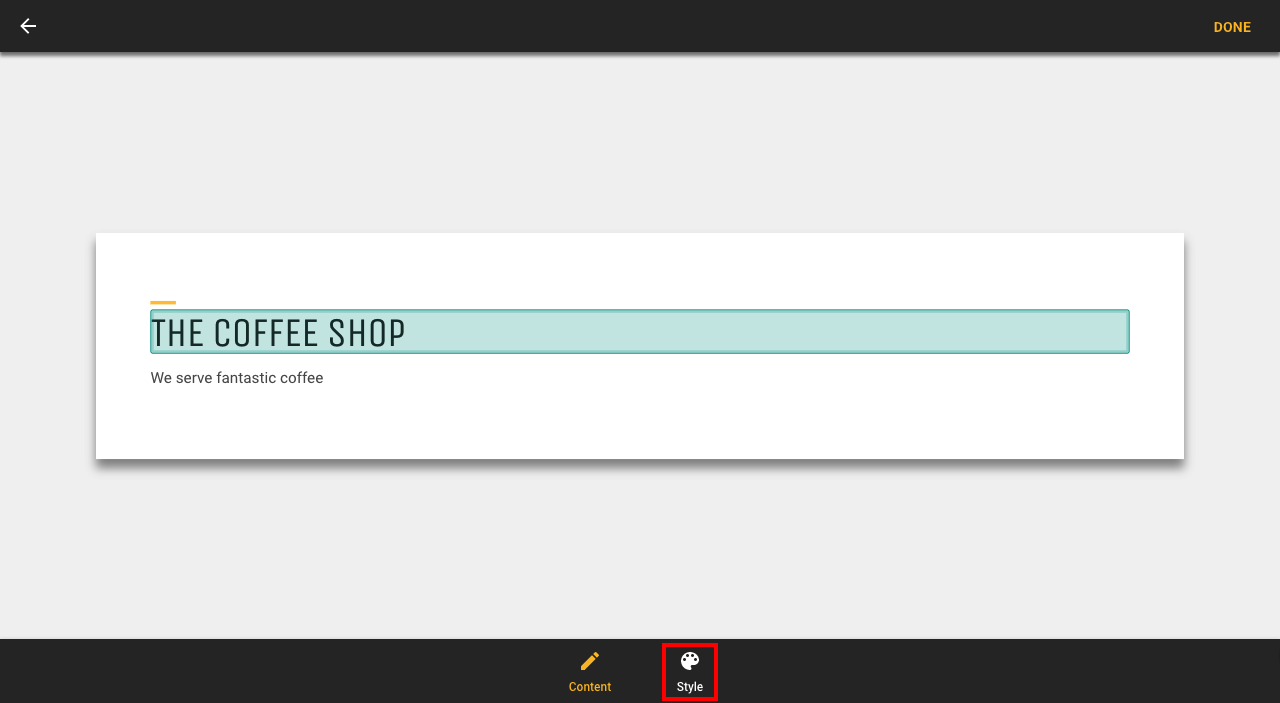
1. Click on the section you want to edit to open the section's settings
2. Click on Style
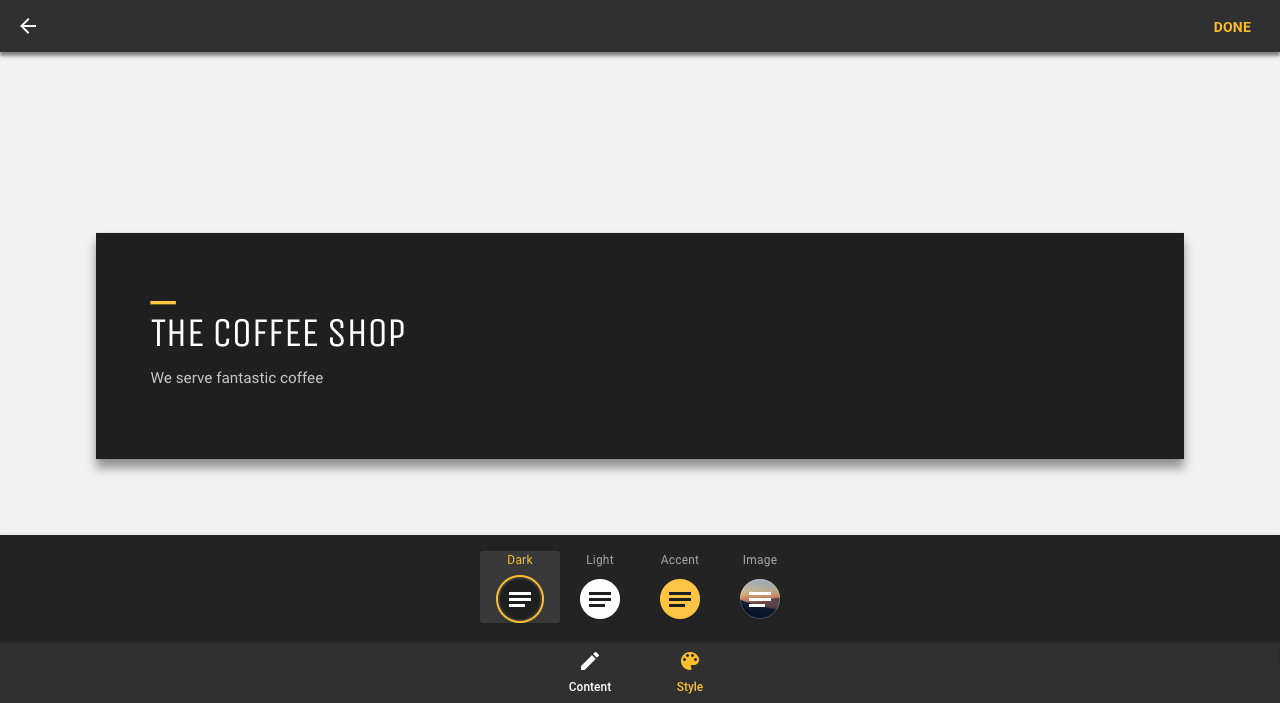
3. Select one of the options to change the style of your section
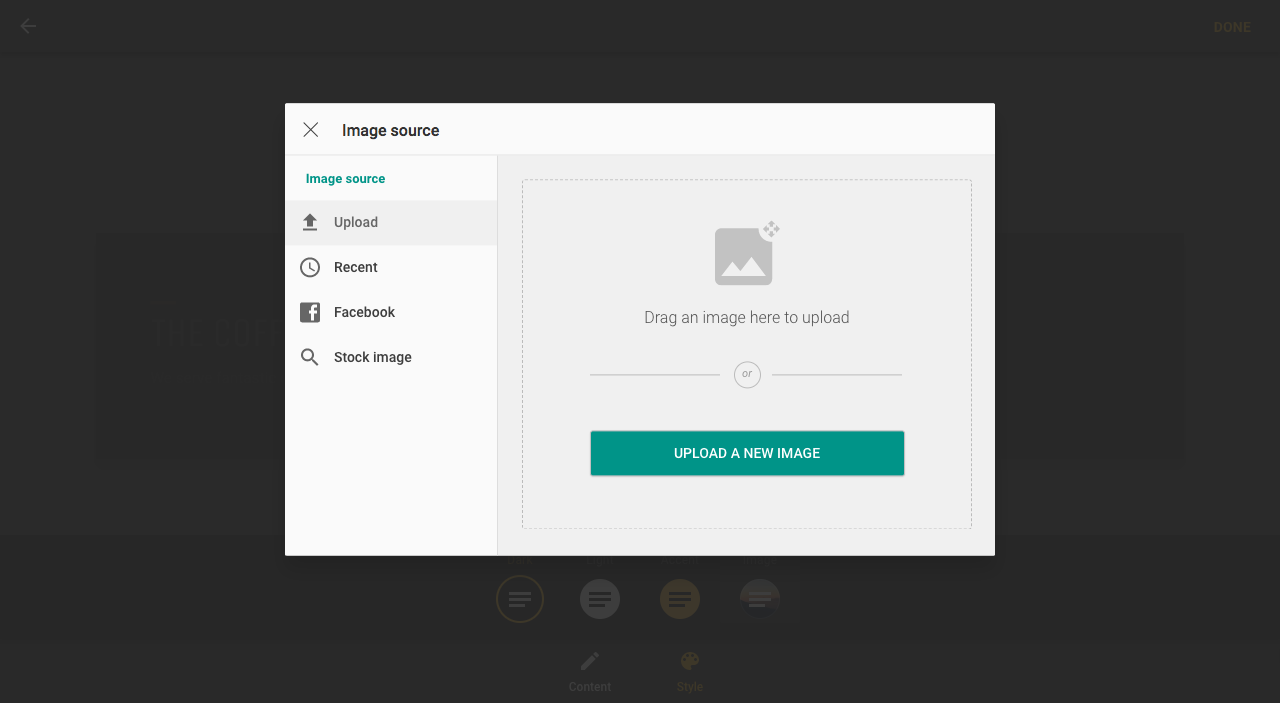
4. If you select Image, you can upload a new image or access your previously uploaded images
Changing section layout
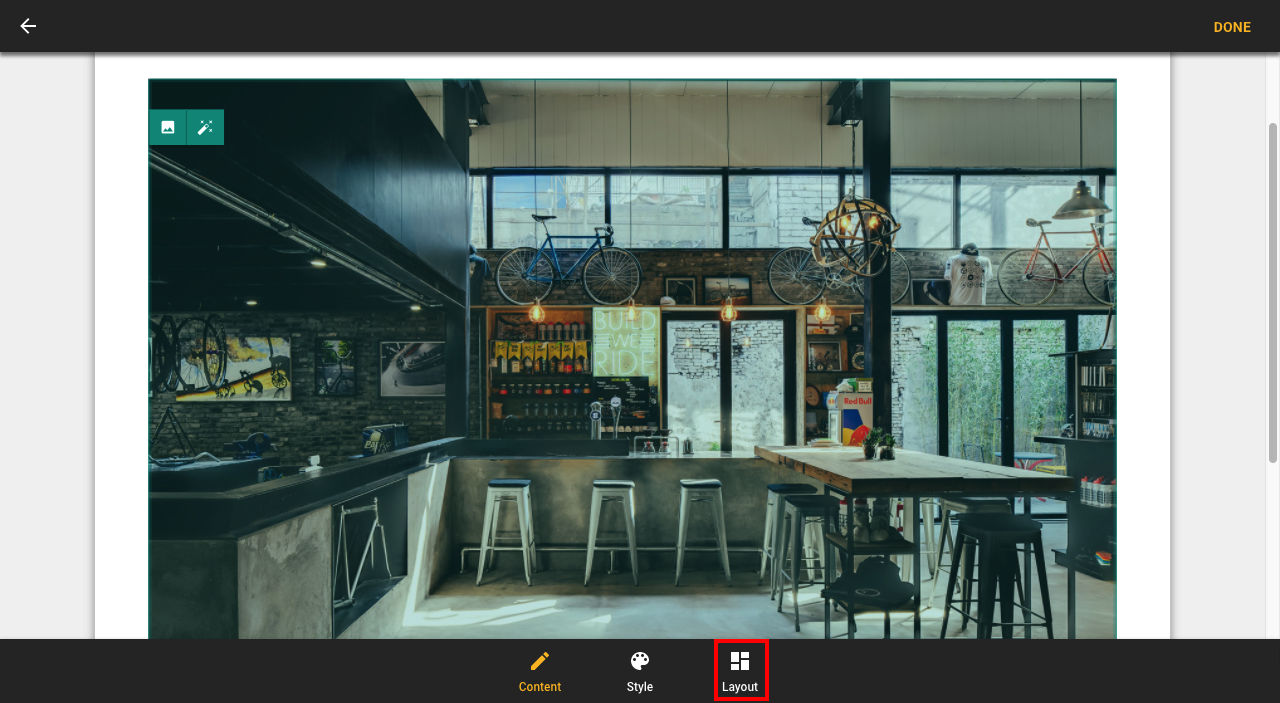
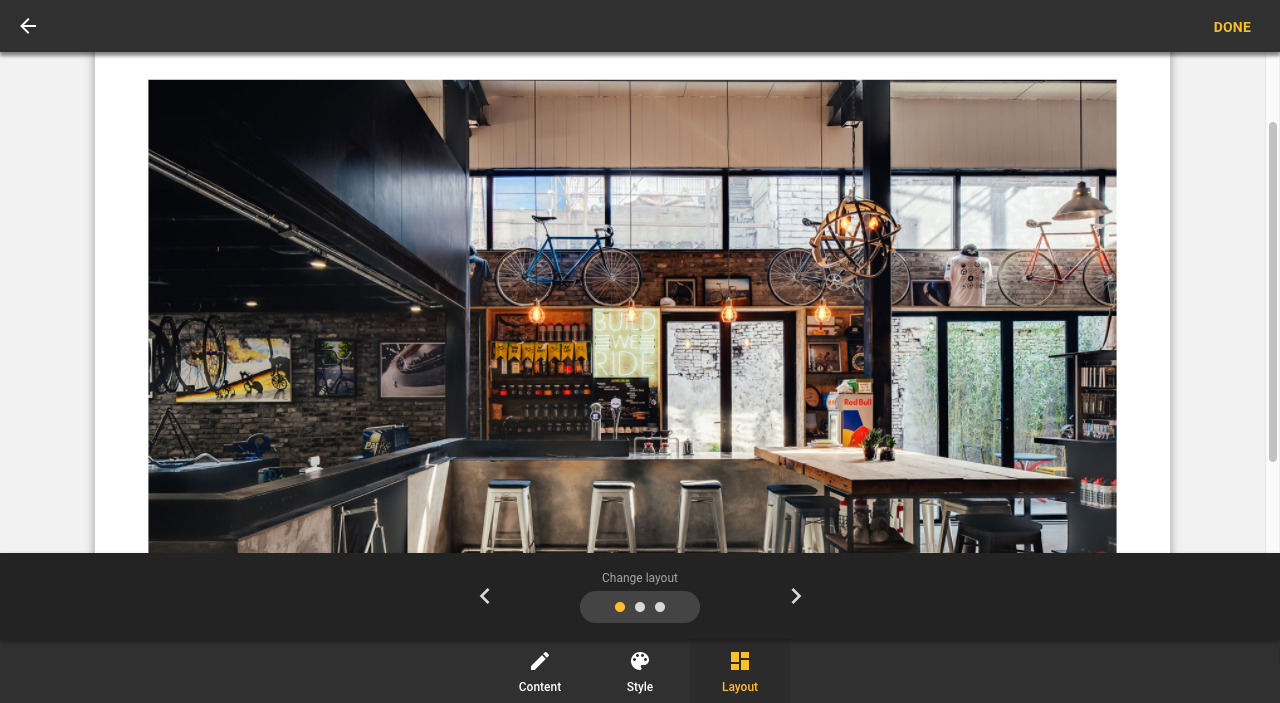
1. Click on the section you want to change to open the settings and click Layout
2. Select the layout you want to use and click Done
Headers and footers
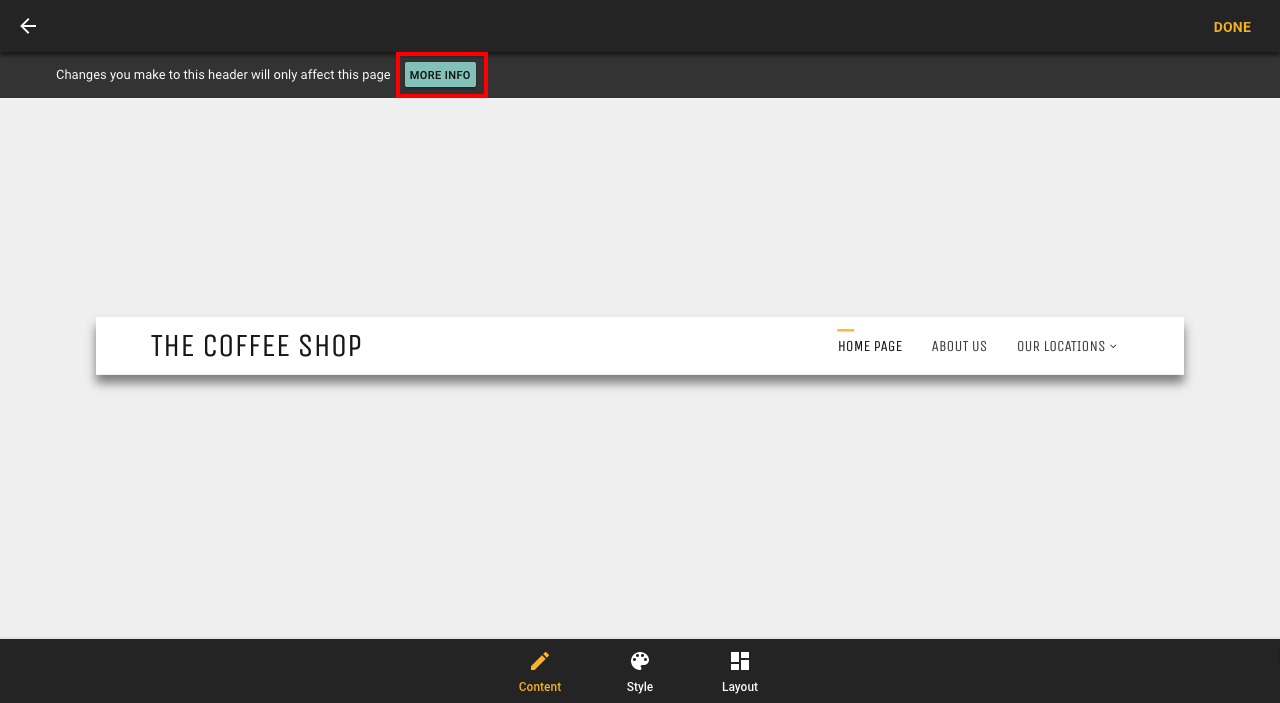
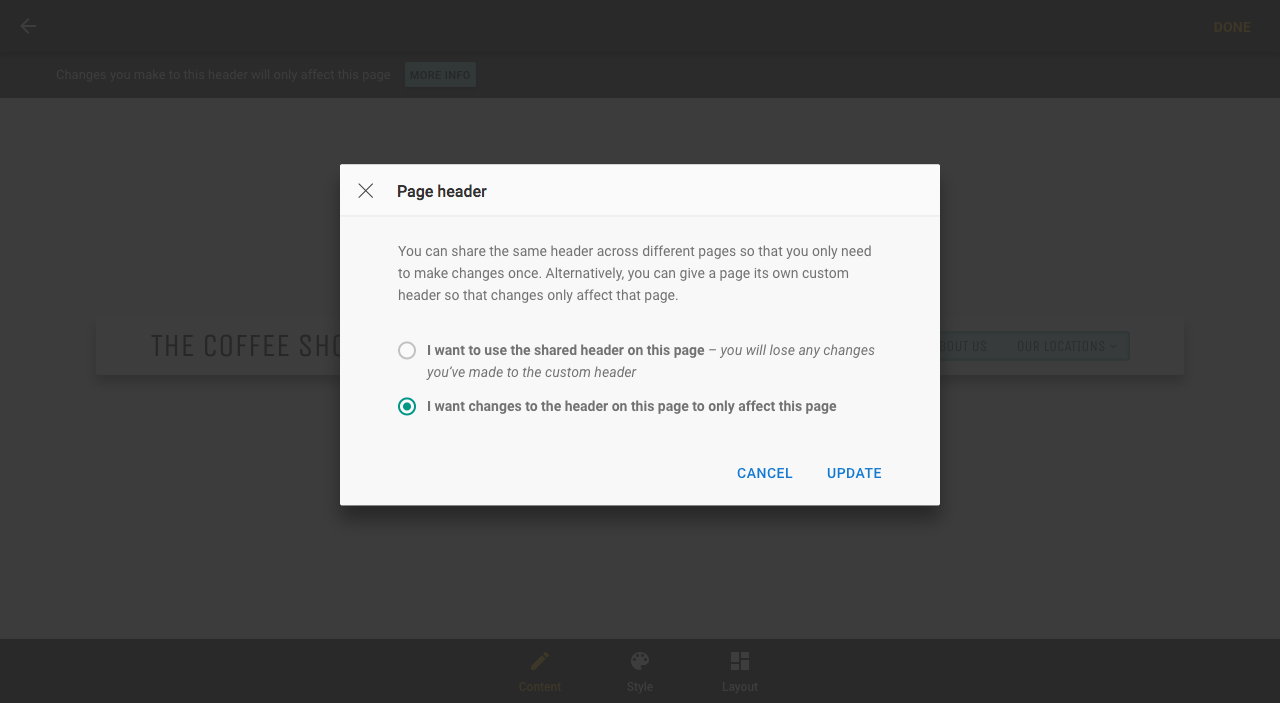
When editing your header or footer, you can choose to make changes on a page by page basis, or to apply the changes to all pages on your site
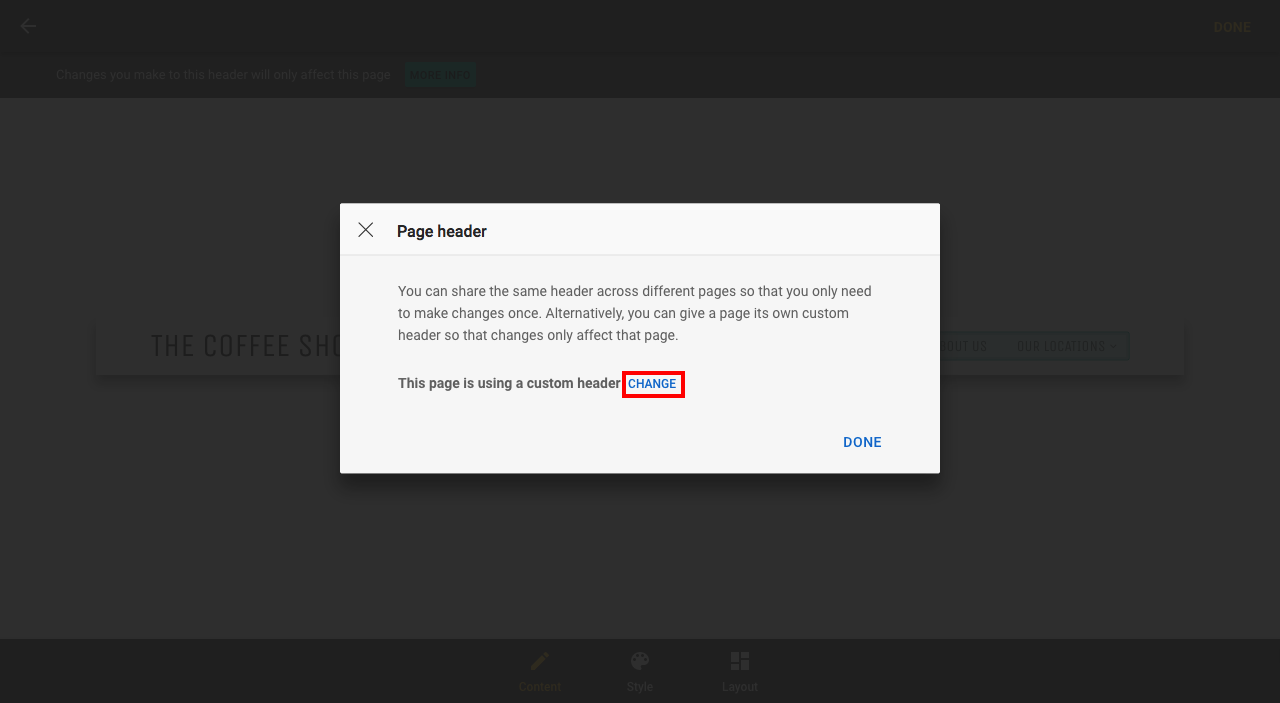
1. Click on your header or footer to open the settings page. Click on More info
2. To view the option to change the settings, click Change
3. Select the setting you wish to use and click Update