
Tax rates
This article is intended to show you how to add a tax rate to your store. If you have questions about tax rates you should direct them to a tax professional.
To add tax rates:
- Click Store
2. Click on Settings and then Tax
If you haven't yet set up your store, you will need to add at least one shipping rate. You can only set up a tax rate for a place that you ship to. The tax page will prompt you to add a shipping rate before you can add any tax rates.
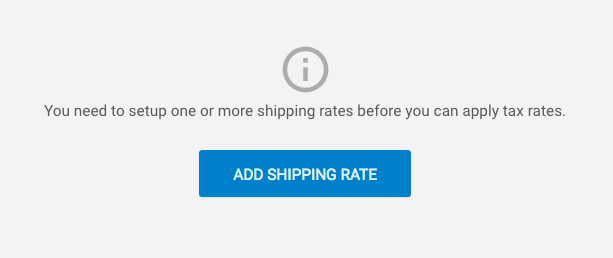
You need to have at least one shipping rate set up before you can add a tax rate
Once you have added at least one shipping rate:
- Toggle Enable tax?
- Toggle Enable tax for your desired countries
- Add the tax rate
- Click Save
When is tax calculated?
Tax is calculated during checkout and is applied to the combined value of all items in the basket.
Shipping rates are not taxed.
Discount codes are applied before tax is added to the basket value.